

40 years of trust from the world's leading brands


Best Selling Labels
View all-
-
-
-
-
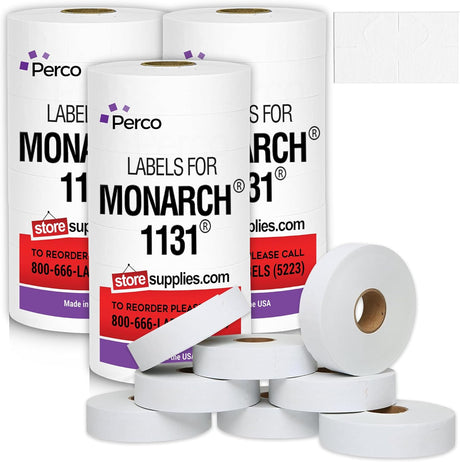
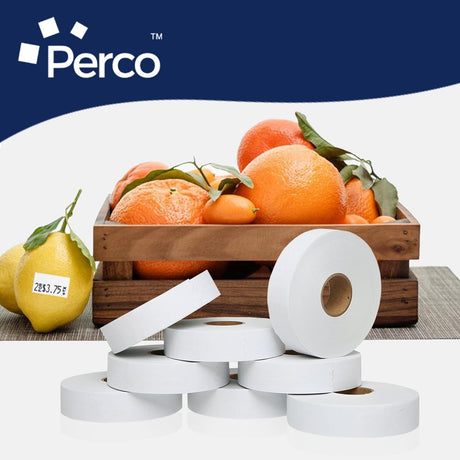
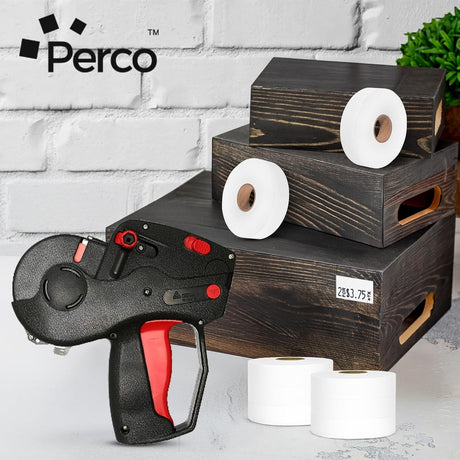
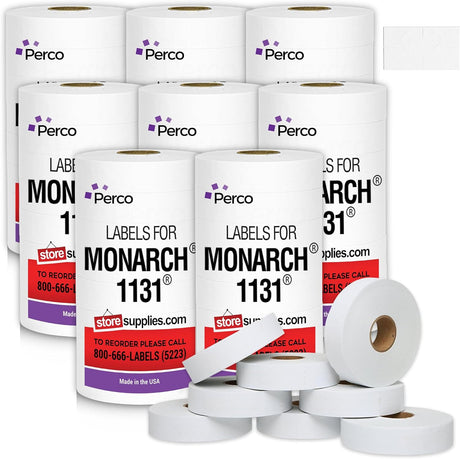
Perco Pricing Labeler Labels For Monarch 1131
(23)Sale price From $28.49 USD Regular price $39.99Unit price /Unavailable11 colors available
-
-
Perco Pricing Labels for Monarch 1136
(3)Sale price From $29.99 USD Regular price $39.99Unit price /Unavailable9 colors available
-
-
Perco Pricing Labels for Monarch 1130
(23)Sale price From $34.19 USD Regular price $47.99Unit price /Unavailable1 color available
-
-
Pricing Labels for Monarch 1115 Price Gun
(20)Sale price From $21.84 USD Regular price $30.99Unit price /Unavailable2 colors available
-
-
Perco Price Labels for Monarch 1110
(61)Sale price From $23.74 USD Regular price $33.99Unit price /Unavailable3 colors available
-
-
Perco Price Labels for Motex 2200
Sale price $26.99 USD Regular price $37.99Unit price /Unavailable -












| Facet | ||||
|---|---|---|---|---|
| Price | ||||
| Price |
Sale price
From
$24.99 USD
Regular price
$31.99
Unit price
/
Unavailable
|
Sale price
$66.49 USD
Regular price
$93.99
Unit price
/
Unavailable
|
Sale price
From
$104.49 USD
Regular price
$146.99
Unit price
/
Unavailable
|
Sale price
From
$129.99 USD
Regular price
$139.99
Unit price
/
Unavailable
|
| Highlights | ||||
| Highlights | ||||
| Durability | ||||
| Durability | ||||
| Lines of Print | ||||
| Lines of Print | ||||
| Warranty | ||||
| Warranty | ||||
| Ease of Use | ||||
| Ease of Use | ||||


